WordPress 7.0 will launch on April 9, 2026 at Contributor Day during WordCamp Asia. So, it’s a perfect time for this major release packed with exciting updates.
This version is built to make creating and managing websites faster and easier for all. Whether they are beginners, developers, designers, or WordPress enthusiasts.
You’ll get new features like real-time collaboration and blocks for breadcrumbs and icons. It even improves the font library, block controls, and visual revisions.
Want to know them in-depth? This article breaks down everything you need to know about WordPress 7.0. Let’s dive right in to check out its upcoming features.
IN THIS GUIDE
hide
What’s Coming in WordPress 7.0?
The WordPress latest version is offering various fresh updates. They cover upgrades on collaboration, site editing, performance, and design controls.
If you’re eager to try and test this release, log into your WordPress dashboard first. There, use the WordPress Beta Tester plugin to upgrade to the latest Beta or Release Candidate version of WordPress 7.0.
For this guide, we’re using the default Twenty Twenty-Five theme. Once you’re all set, proceed to explore and experiment with the forthcoming features.
1. Enhanced Admin UI and View Transitions
WordPress 7.0 updates the admin dashboard with a clean yet modern design. It uses a fresh default color scheme with updated typography. This new yet familiar interface has a more organized look that makes it easier to read and navigate.
Hence, the dashboard layout is more simplified and intuitive with reduced clutter. This lets you quickly find the settings and options you need without confusion.
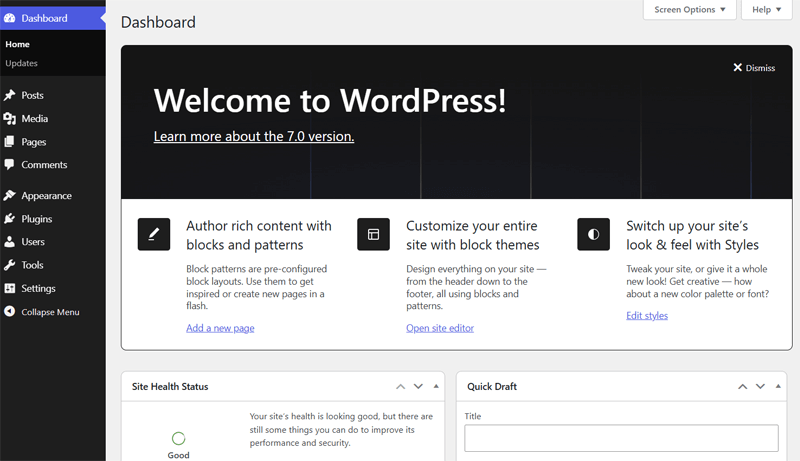
In addition, you can also find that the transitions between screens are now smoother. Elements slide and fade into place for a fluid and continuous experience.
So, moving from the dashboard to the page list or setting pages feels seamless. This improved flow keeps your focus on the task without interruptions.
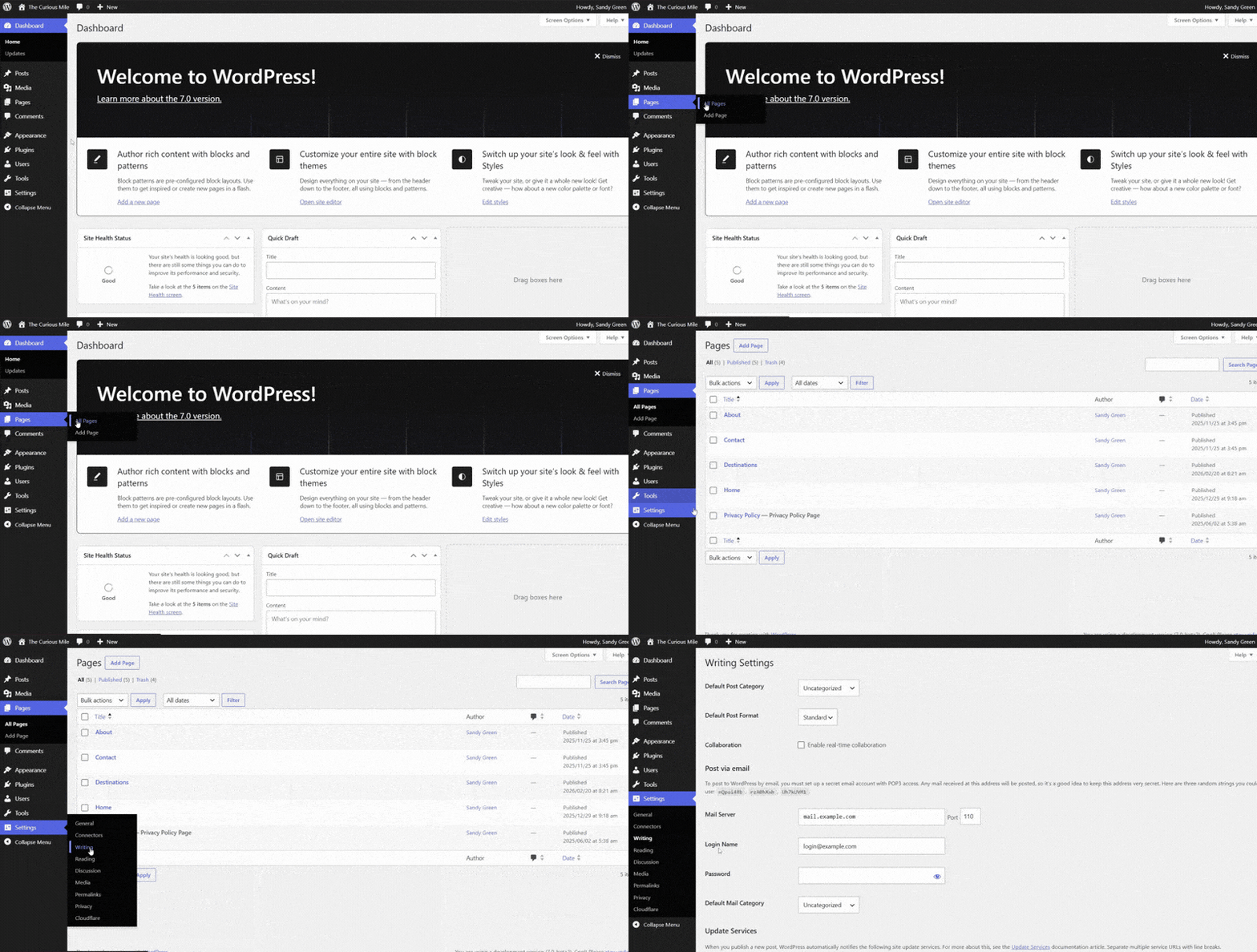
Therefore, these interface and transition enhancements make WordPress 7.0’s admin dashboard easier to navigate and use. Whether you’re a beginner or an expert user, managing your website feels more like a modern web app.
2. Visual Revisions for Pages and Posts
Moving forward, WordPress 7.0 offers the visual revisions feature. If you open a page or post, then you can find the ‘Revisions’ section in the page or post settings.
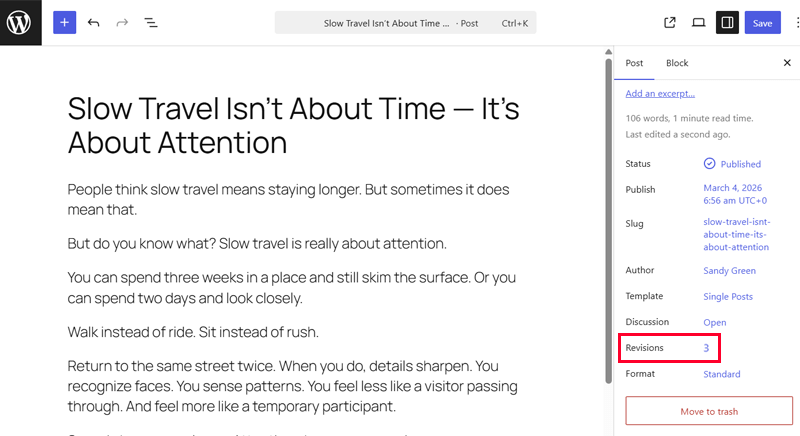
Upon clicking on the number of revisions made, the previous WordPress versions redirected you outside the editor. There, you could view the previous revisions.
With the upcoming release, you can compare past versions of your posts or pages right inside the editor. Plus, it lets you see exactly how content, images, and layouts changed in a particular revision.
Simply put, this revisions feature highlights differences side by side through visual cues. So, you’ll see how blocks appear on the front end with the changes made.
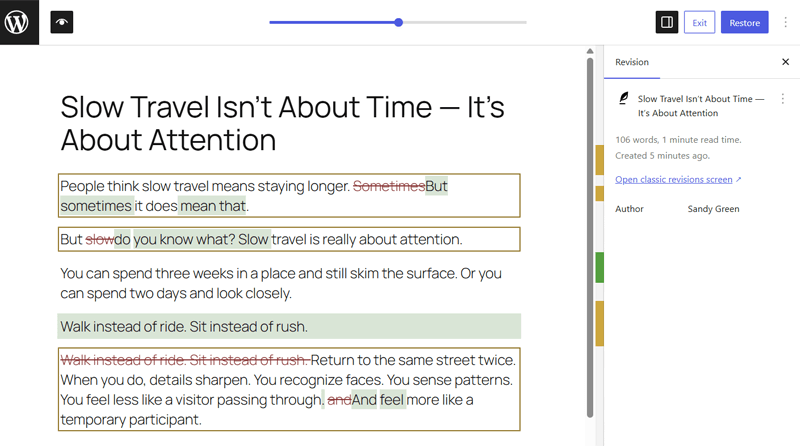
Suppose you accidentally deleted elements of your post or page. But don’t worry! Visual revisions will save your time. It lets you spot the changes immediately and restore it with a single click.
3. Introducing the Web Client AI API
Guess what? The upcoming WordPress 7.0 version is introducing the new Web Client AI API to Core. With that, AI will work directly in the admin dashboard.
Simply put, this API works as a central hub for connecting WordPress to generative AI models. So, the providers remain external, while WordPress lets you access them right inside your website.
In fact, the API works alongside the recently introduced Abilities API. This structured and standard approach helps to run AI-powered tasks in the browser. So, plugins and themes stay organized instead of competing or cluttering the interface.
Overall, you’ll get built-in AI features right in the block editor. With that, you can securely store AI credentials and let plugins use your chosen model for AI tasks. This involves content generation, summarization, etc.
Hence, WordPress 7.0 helps both beginners and experts with smarter, AI-enabled website-building capabilities.
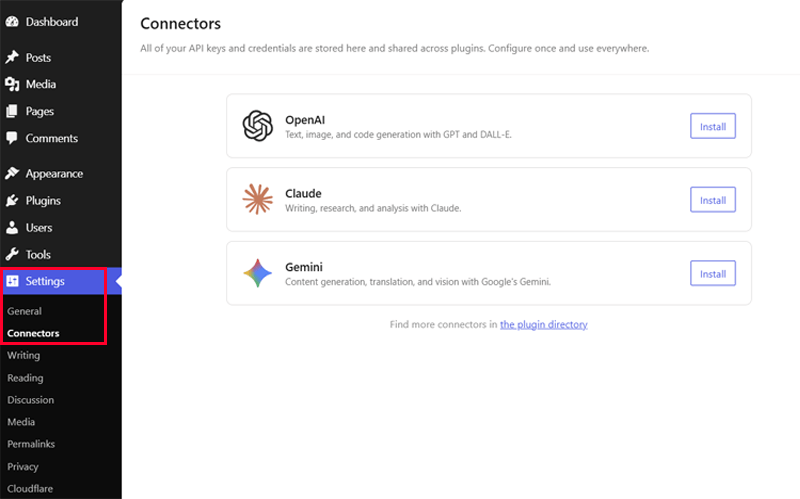
With this underlying infrastructure, WordPress 7.0 also offers an AI Connectors dashboard. This new dashboard lets you manage (add, update, or remove) all AI connections in one place in the admin area.
If you’re a developer, then you can extend the page with plugins using new hooks and APIs for a smoother integration.
4. Real-Time Collaboration
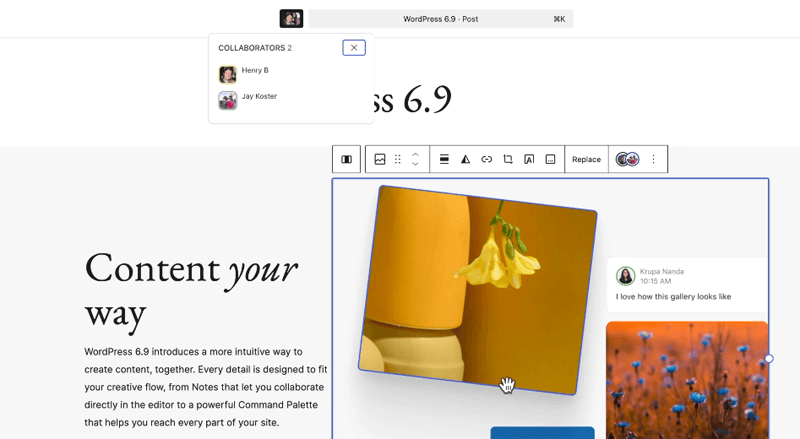
On top of the Notes feature introduced in 6.9, WordPress 7.0 plans to let your teams easily work together. Meaning, multiple users can edit the same post or page at the same time. Plus, you don’t have to worry about your work not getting saved.
This new collaboration feature will let everyone contribute without blocking others. The changes sync in real time, so edits from different users appear instantly.
Plus, notes and inline comments also sync live for all users working on a page or post. Ultimately, your teams can see updates immediately.
Thanks to the new default HTTP polling sync provider that keeps everything smooth. Along with the websocket support through options in plugins or hosts that makes the syncing even quicker.
Cherry on top! WordPress 7.0 is also planning to support offline editing. So, your work continues even if a connection is lost.
Note that this real-time collaboration feature is under active development. It’s not yet confirmed whether or not it’ll be available in the final WordPress 7.0 release.
If it does make it to the latest release, then you can find it similar to Google Docs for content teams. All your writers, editors, and designers make changes at once. This enhances productivity and doesn’t let your team get locked out of content.
5. New Breadcrumbs and Icon Blocks
Following that, WordPress 7.0 is also offering two new blocks that most WordPress users are requesting. They are breadcrumbs and the icon.
Both of these blocks are quite helpful to instantly add key features to your website right in the editor. This removes the need for separate WordPress plugins.
Now, let’s check them out in-depth!
i. Breadcrumbs Block
First, the Breadcrumbs block shows the current location of your user within the page hierarchy. This helps your users navigate your website. Further, it also guides search engines to get a clearer structure of your site that improves your site’s SEO.
Moreover, this block automatically adapts to your website’s global styles through the theme.json schema. Meaning, the breadcrumbs will effortlessly match your site design. So, your navigation becomes both clean and consistent across your site.
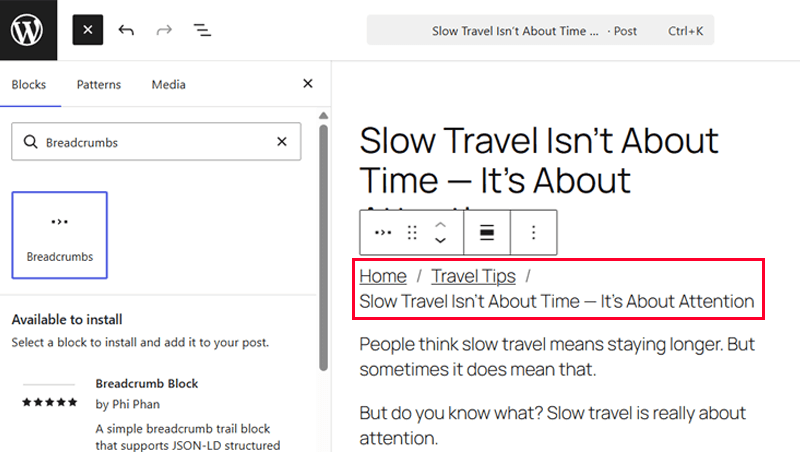
Let’s see how to use this block. Open a page or post. There, click the ‘+’ option, i.e., Block Inserter. On the ‘Blocks’ tab, search for ‘Breadcrumbs.’
Once you find this new block, drag and drop it to a place inside your post or page. Instantly, the block automatically shows the location of that post or page.
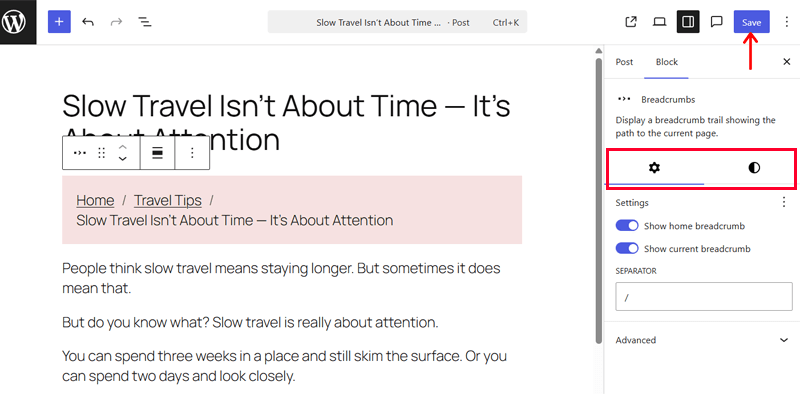
In addition, you can further customize your breadcrumbs. This involves:
- Deciding how you want to show the hierarchical levels. This can be showing the home and current breadcrumbs or not, plus specifying the separator.
- Adjusting the text and background colors, typography, dimensions, and borders from the block settings.
Now, hit the ‘Save’ button and preview your page or post. Pretty good, isn’t it?
ii. Icon Block
Another new WordPress block coming in the latest release is the Icon block. Using this block lets you insert scalable vector graphics (SVGs) into your content.
Understand that this block provides a built-in icon library, which is much smaller than options like Font Awesome. However, you’ll get all the common icons. So, you don’t require additional plugins or custom code for adding icons.
Now, let’s dive into using this new Icon block. Here we go!
Start by opening a post or page. Then, click the ‘+’ option, i.e., Block Inserter. On the ‘Blocks’ tab, search for ‘Icon.’
After you find this new block, drag and drop it to where you want the icons on the page or post. Next, click the ‘Choose icon’ option in the block’s top-bar setting.
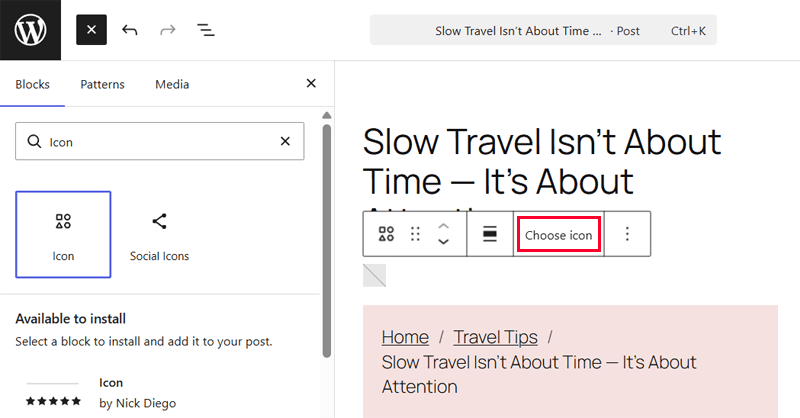
This opens the icon library with different icons. Just search for the icon you need and click on it.
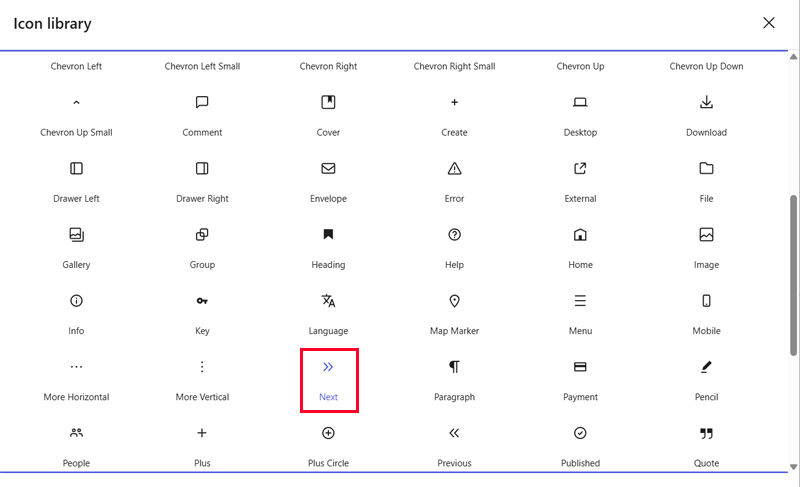
With that, you can see that the icon is added to your post or page. Plus, it lets you:
- Configure the icon label and/or add custom code.
- Adjust background and text colors, dimensions, and border in the block settings.
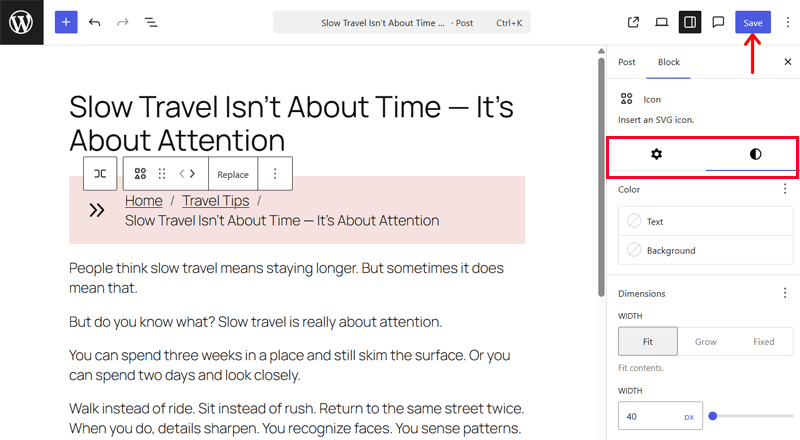
Don’t forget to save your changes once they’re done.
6. Improvements to the Existing Blocks
Not just new blocks, but you may find several enhancements to the existing blocks in WordPress 7.0. Undoubtedly, these improve the website navigation and design.
Now, let’s check them out!
i. Navigation Block
WordPress 7.0 is planning to make upgrades to the Navigation block. If this feature is released, then you’ll get a clearer, smoother, and more intuitive way to edit and organize the menus. Both beginners and experts can now build better navigation.
When using a block theme, navigate to ‘Appearance > Editor.’ Now, open the ‘Navigation’ menu and click the ‘Edit’ option in the three-dotted ‘Actions’ option.
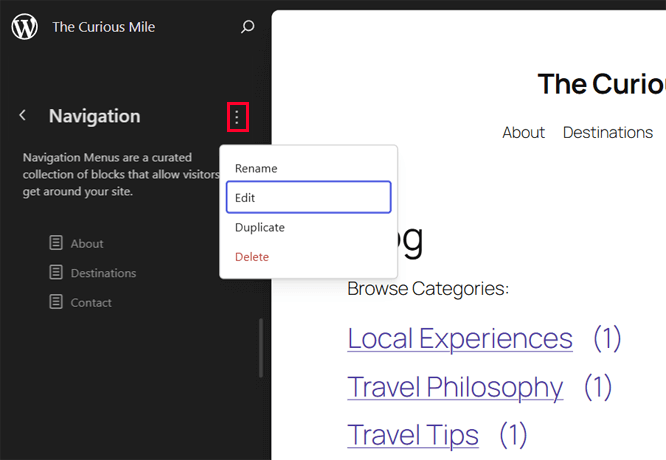
Next, click the ‘Navigation’ block, and you’ll find the ‘Settings’ tab in the block settings. There, you can see the new ‘Overlay’ settings.
The main aim of this added feature is to allow mobile menus to display a clean hamburger icon. Once this icon is clicked, it will expand into a well-styled overlay.
The following are the flexible options you’ll find in the ‘Overlay’ setting:
- You can choose when the overlay appears: Off, Mobile, or Always.
- Decide to show or hide the icon button for the overlay menu.
- Pick the hamburger icon style.
- Create and customize a complete template for your overlay menu.

This upgrade lets you control your menu appearance and behavior across screen sizes. Here, the navigation overlays work as template parts. Due to which, you can design menus to be shown or hidden based on screen sizes.
Check out our guide on the best practices for website navigation and how to add pages to the WordPress menu.
ii. Heading Block
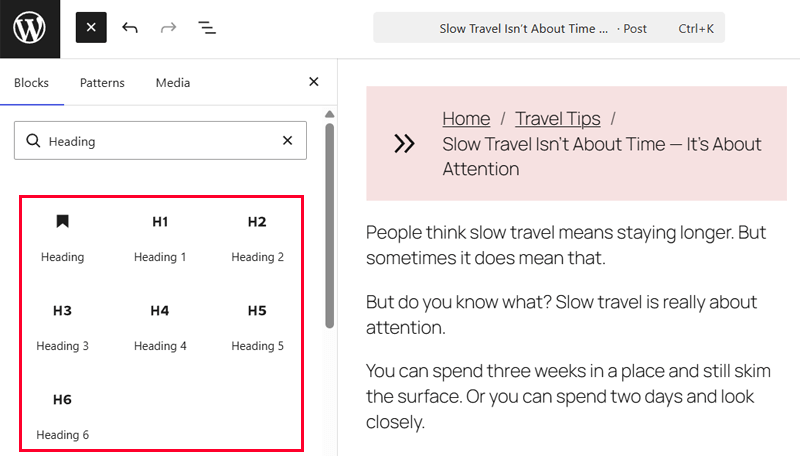
In addition, WordPress 7.0 is also helping you improve your article structure. Now, the heading block includes additional heading levels as block variations. This provides more control over page hierarchy and design.
Just search for ‘Heading’ in your post or page like any other block. There, you can now find several more heading levels from H1 through H6. With that, just drag and drop your required heading level and add the heading text.
Suppose you’re already using the ‘Heading’ block. Then, you can also click the block name to transform between heading levels with a single click.
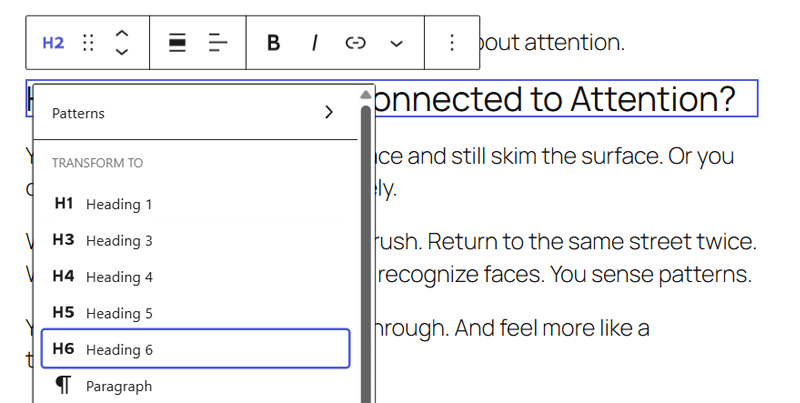
This surely helps your readers to easily scan your posts and pages. Plus, it lets search engine crawlers properly index your website, right?
iii. Cover Block
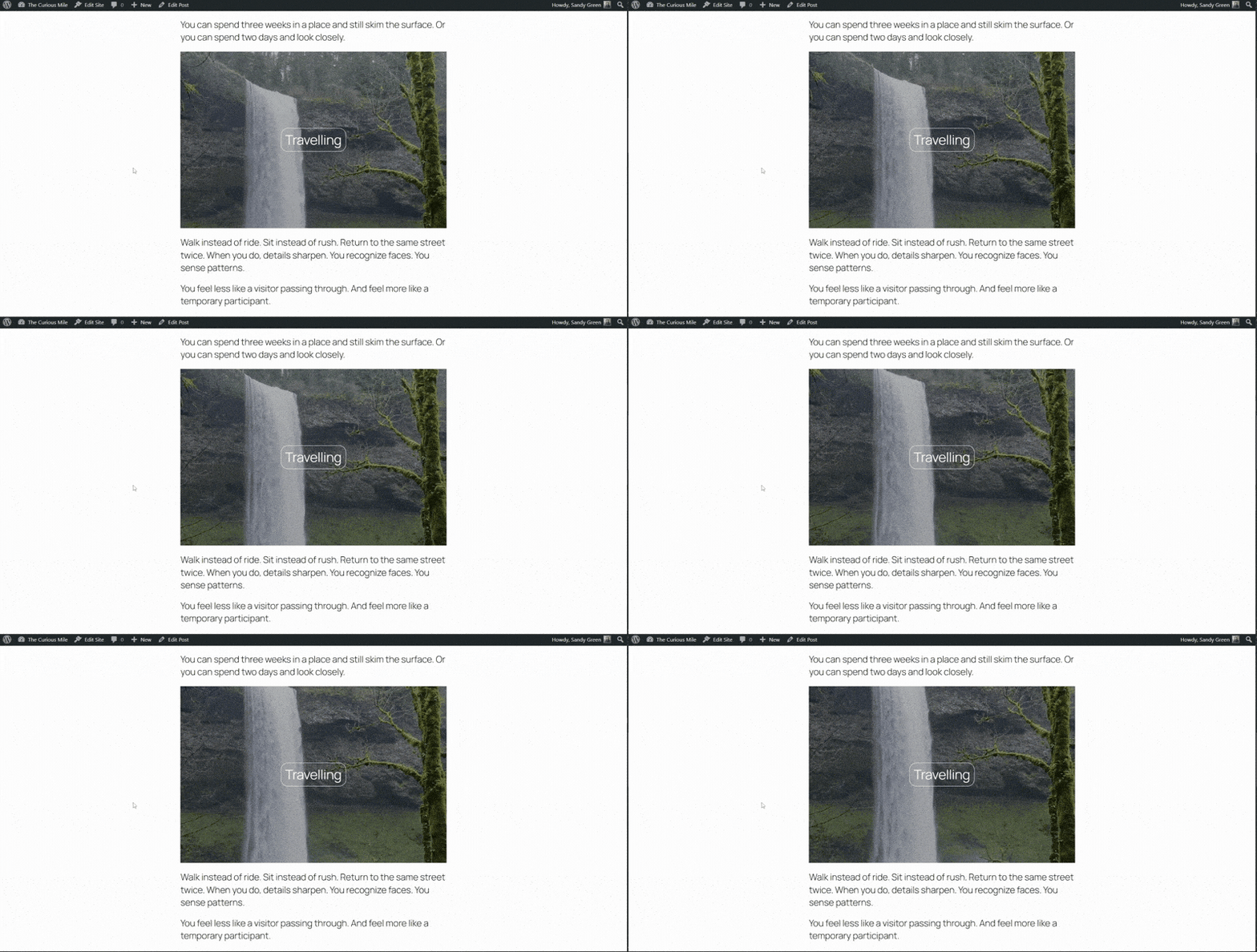
Another improvement is on the Cover block. You can use a Cover block to add hero sections and banners to your site. But the previous versions only allowed you to add an image or video uploaded to the media library as a background.
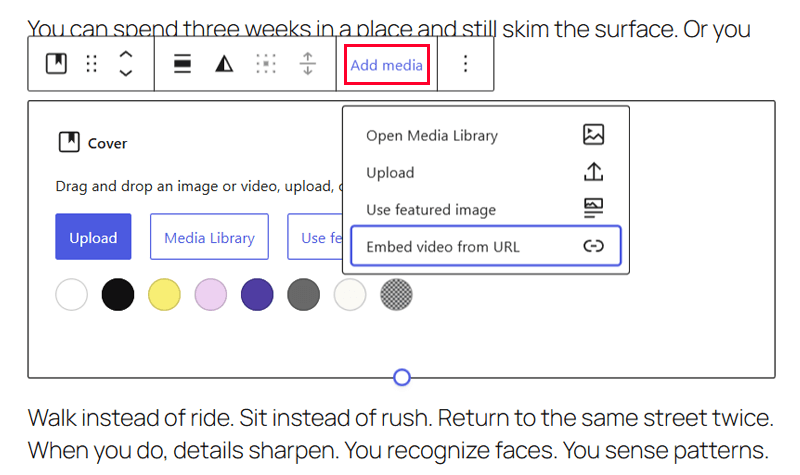
With the upcoming WordPress release, you can even embed videos via URL as backgrounds in the Cover block.
Just add a ‘Cover’ block to your post or page like any other WordPress block. Then, click the ‘Add media’ option in the top-bar block setting. There, you’ll find the new ‘Embed video from URL’ option along with others.
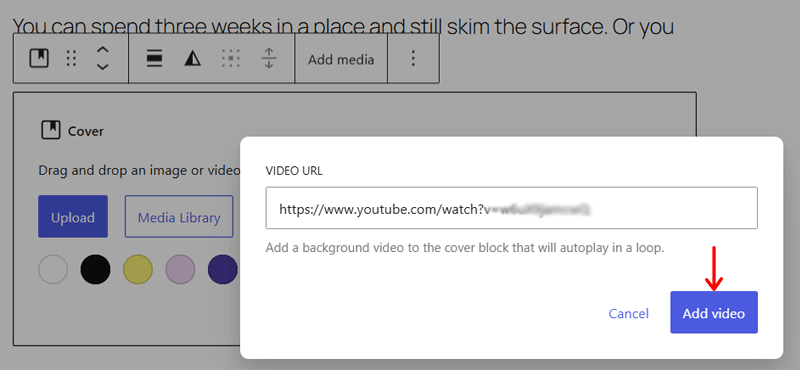
Now, you can insert the video URL and click the ‘Add video’ button. With that, the video becomes the cover background.
Next, you can add the cover text and other blocks like a button. Then, stylize the cover, for example, adjusting the colors, typography, dimensions, and borders.
iv. Grid Block
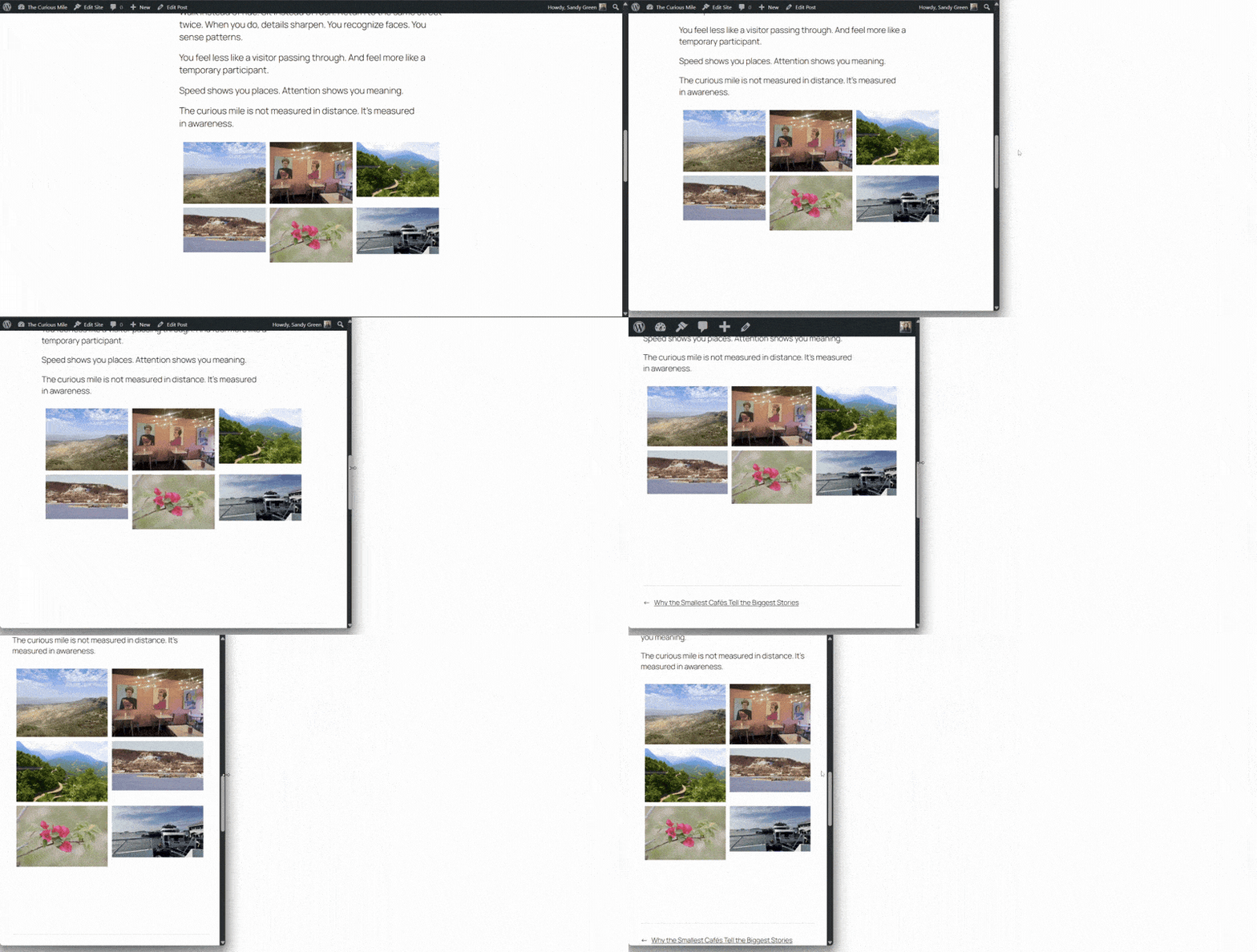
Last but not least. You’ll also find upgrades to the Grid block in WordPress 7.0. That involves a responsive grid-based layout that adapts smoothly across screen sizes.
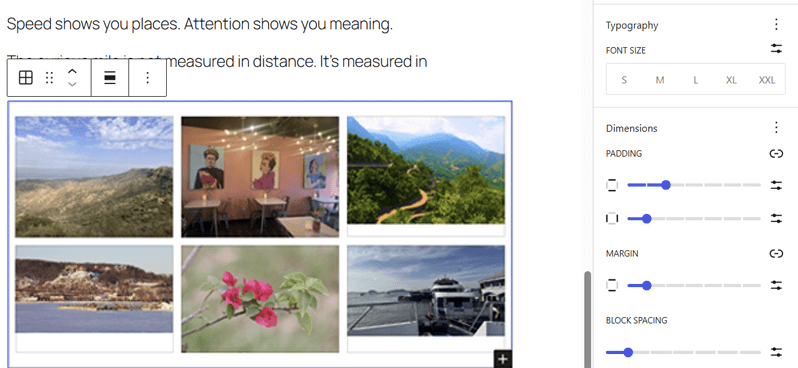
Begin by inserting the Grid block into your post or page like any other block. Now, add content to your grid, such as images or paragraphs.
Further, you can stylize the grid and its individual block content. For example, it lets you customize the grid layout and position. Adjusting the style, colors, typography, dimensions, border, shadow, and background options is possible.
Save the changes once you’re done.
Now, you can preview your post or page on different screen sizes. You’ll find that the grid content is fully responsive. So say bye to manual column adjustments.
7. Add Custom Styles Directly to Individual Blocks
Previous WordPress versions let you add custom CSS in the Customizer’s Additional CSS section or a child theme’s style.css file. Then, you have to insert the CSS classes on the block to apply the additional changes.
This is helpful if you use the same CSS for multiple blocks across your site. But if you want to add CSS to just a specific block, then that’s quite troublesome, right?
WordPress 7.0 will remove this hassle. Now, you can add custom CSS to a particular block right inside the editor. This lets you quickly fine-tune your designs.
Just select the block where you want to add the custom CSS. Next, go to the block settings and open the ‘Advanced’ section.
There, you’ll find the new ‘Additional CSS’ text area where you can add the CSS. Then, add the respective CSS class to the ‘Additional CSS Class(es)’ text box.
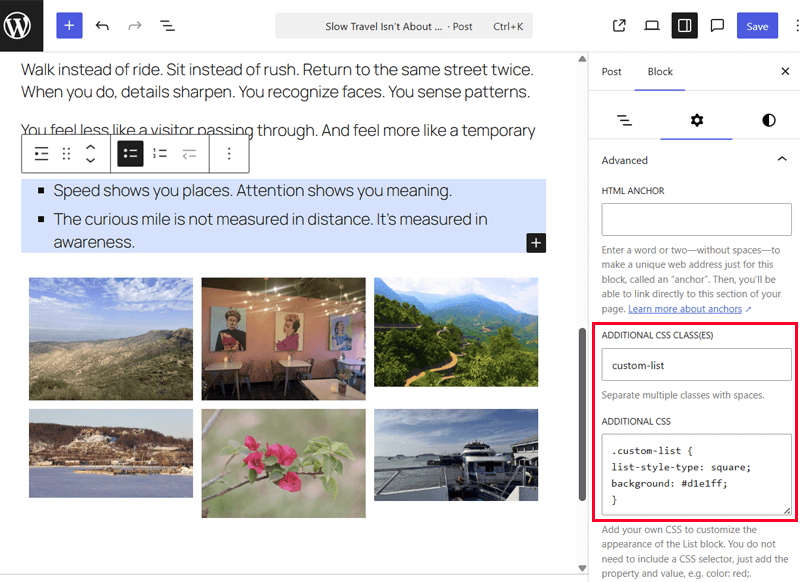
In a nutshell, the new release will let you add both custom CSS and its classes right in the block settings. That’s ideal to instantly tweak a single element without creating child themes or writing complex CSS selectors outside the block editor.
8. Pattern-level Editing Modes
Pre-designed and reusable WordPress patterns ease your website design process. With WordPress 7.0, you’ll get new pattern-level editing modes that help you focus on pattern design. Specifically, the new release will offer two new modes.
i. Spotlight Mode
The Spotlight mode in WordPress 7.0 lets you isolate content in patterns and notes. Previously, this mode was only available for general blocks.
For example, let’s check out this mode for a pattern. First, add a pattern to your post or page. Now, select the section of the pattern and open the three-dotted ‘Options’ icon at the top-right. There, click the ‘Spotlight mode’ option.
With that, the Spotlight mode enables isolating the content within the pattern. While everything else dims on that post or page. Ultimately, you can focus on that pattern and modify it as you want without distraction.
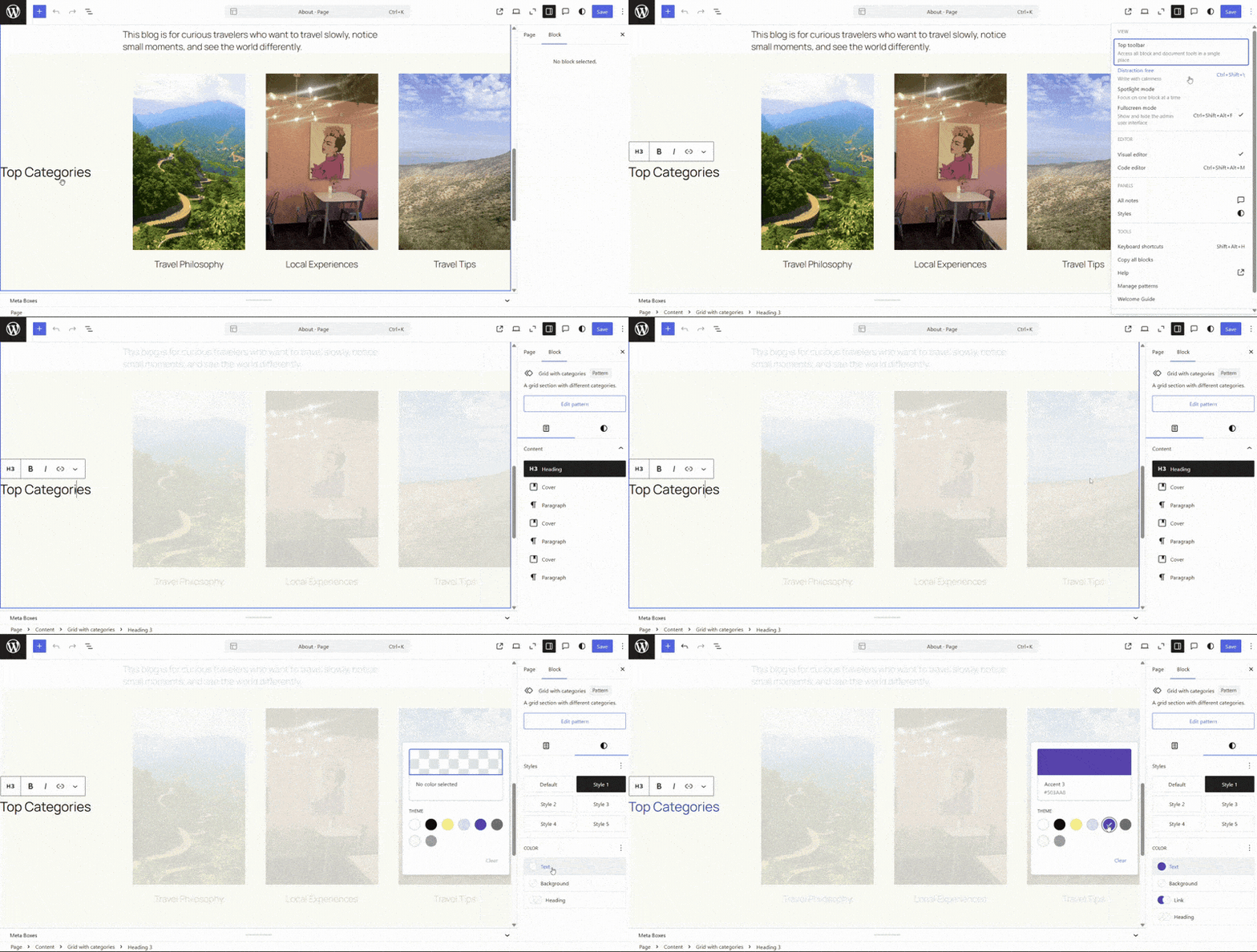
The process to enable and use this mode is the same for both patterns and notes. So, you can try out this feature for notes, too.
ii. Isolated Editor Mode
On the other hand, the isolated editor mode in WordPress 7.0 lets you edit symbols added to your website. Further, you can also edit the reusable pieces of your website, like synced patterns, template parts, and navigation.
For example, click the synced pattern (a pattern made so that the content remains the same across the various locations it’s added to the site) in the editor. There, hit the ‘Edit original’ option in the top-bar setting.
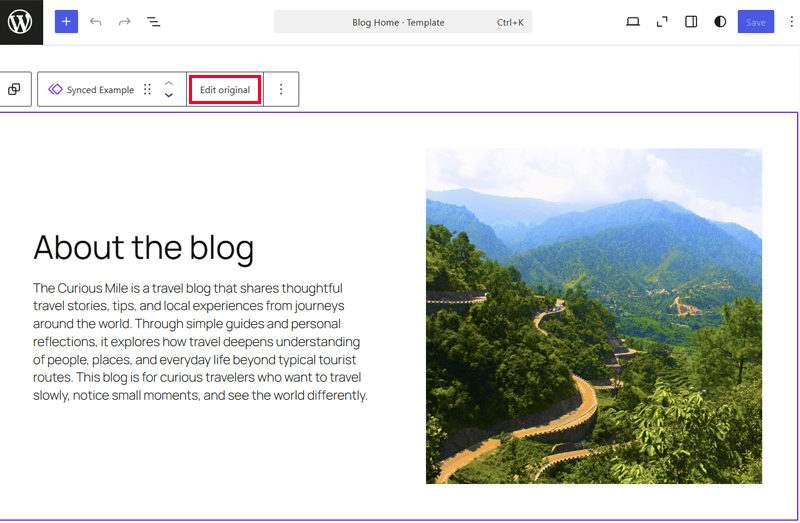
Now, this opens that element in its own editor. There, you can edit its layout and structure separately from the rest of the page without affecting other elements.
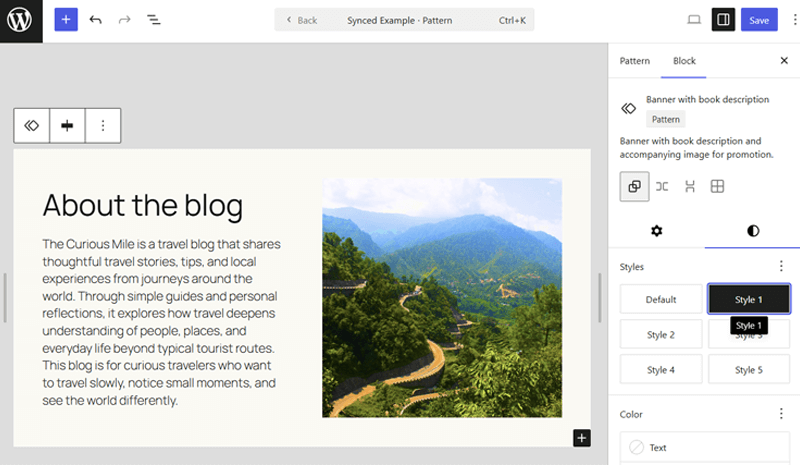
Overall, this mode works with the default content-only editing that focuses on text and media. You can switch to isolated mode to quickly modify the design and structure of a reusable element.
In addition, WordPress 7.0 also offers other editing features. This involves a tree view for buttons and list blocks.
9. Font Library Available for All Themes
An exciting update coming in WordPress 7.0 is the built-in font library for all themes. Previously, only a few block themes had this feature.
Open your WordPress dashboard and navigate to the ‘Appearance > Fonts’ menu. There, you can find three tabs. They are:
- Library: Here, you can view the available font themes and their variants.
- Upload: This tab lets you upload your font files of supported formats to use.
- Install Fonts: If you want to use Google Fonts, then allow its access here.
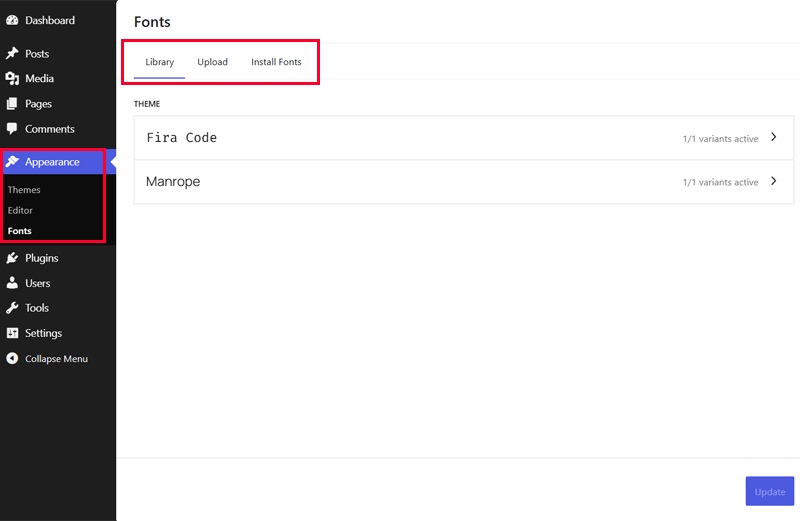
Therefore, this feature lets you manage the installed fonts. Meaning, you can easily browse, install, and organize them. That’s regardless of which theme you’re using.
Here’s our guide on choosing the best font for your website.
10. Additional Developer and Performance Updates
Additionally, WordPress 7.0 is also filled with several more features, technical enhancements, and performance updates. All of which helps WordPress to be faster, more secure, and easier for developers and website owners.
The list below points out the additional notable features and updates:
- Client-side Media Processing: This feature lets you resize and compress images of various modern formats right in your browser. Now, your site images upload faster and reduce the load on your web server storage space.
- Responsive Editing Mode: You can make sure if a block displays or hides on a particular screen size. This makes block visibility more responsive.
- Block Support and More Design Tools: WordPress 7.0 will support text line indent, text column, aspect ratios for wide and full images, dimension width, and height. You’ll find more dimension presets, tools, and controls.
- Client-side Abilities and Workflows APIs: The upgraded client-side abilities API will let users access new and hybrid abilities. Also, it lets you filter and search for functionality for abilities. Further, you’ll get an enhanced command palette and user interface.
- PHP-only Blocks and Patterns Registration: If you’re a developer, then you can use PHP to generate blocks and patterns entirely server-side. These auto-register with the Block API and have auto-generated inspector controls.
- DataForm Updates: You can find new detail layouts and controls like a combobox with validation messages. Plus, a dedicated edit button for panels.
- Changes in DataViews: You’ll find a new activity layout. This lets you add third-party types in future updates.
- CodeMirror Upgrades: This is updated to the 5.65.40 version for more flexibility. It also provides options for coding and library integration.
In a nutshell, WordPress 7.0 is still in beta testing. Many features are still works in progress or require complete testing.
Meaning, the features may change or not make it into the final release. After catching the bugs and polishing the new changes, Release Candidates will come first. Then only the stable final version will be released on 9th April, 2026.
Frequently Asked Questions (FAQs)
Check out the answers to some of the general questions that may be troubling you.
1. When will WordPress 7.0 release?
WordPress 7.0 will release on 9th April, 2026. It’s set to launch during Contributor Day at WordCamp Asia. This event brings together everyone involved with this platform across the region. So, it’s the perfect occasion for the new release. Currently, two Beta versions have already been released.
2. How to try the Beta or Release Candidate versions of WordPress 7.0?
You can try the Beta or Release Candidate versions of WordPress 7.0 in four ways. They are by using the WordPress Beta Tester plugin, installing its ZIP file, entering the WP-CLI command, or using its WordPress Playground instance.
3. Why is it important to test the new WordPress versions?
Testing the new WordPress versions improves the features of the release. Further, it helps catch bugs, fix theme or plugin compatibility issues, and enhance performance. This makes WordPress more stable and reliable for everyone.
4. How can I update to WordPress 7.0 once it’s released?
You can update to WordPress 7.0 by navigating to ‘Dashboard > Updates’ and clicking ‘Update Now.’ Hosting platforms, like Hostinger, may perform automatic updates. Check out the tutorial to update to the latest WordPress version.
5. How can I contribute to WordPress 7.0 or future releases?
You can contribute to WordPress 7.0 or future releases by testing the version on any environment, for example, your hosting platform. Just report issues in the Alpha/Beta forums or submit unfound bugs via WordPress Trac. Follow Make Core, join #core-test on Slack, and many others as mentioned in this article.
Check out the tutorial on how you can create a WordPress website from scratch.
Wrapping Up
That sums up everything you need to know about WordPress 7.0.
But should you update to WordPress 7.0 once it’s released? Indeed, yes!
WordPress 7.0 brings faster performance, better collaboration features, a refined editing experience, and smarter design options. This makes website management even smoother and more efficient.
What new feature or improvement did you like the most? Did any upgrade concern you? Comment down below to share your thoughts and queries.
Until then, check out our guides on how to check the WordPress version of your website and how to choose a WordPress theme.
Don’t forget to follow us on Facebook and X to stay connected with us.
YOU MIGHT ALSO LIKE...
We've picked you some best articles that you might be looking for. Check them now!